Caveat Lens for Schools · Grades 1 to 8
Screening windows,
one class at a time.
Classroom-scale screening support for MTSS teams: a roster of student codes, the Caveat Lens screeners per student or your own screener's results, a class view by skill, tier suggestions and a meeting agenda. Student data stays in your browser.
How it works
For a classroom teacher, an interventionist or the MTSS team, in each fall, winter and spring screening window.
- Add the class. Type student codes or initials, never full names; the page warns if something looks like a name.
- Screen. Give any of the four Lens screeners to a student on this device (oral reading, sounds and speed, word reading and spelling, a learning skills check), or enter the categories from your school's approved screener by hand.
- Read the class view. Each student's band in seven skills, a tier suggestion with the reason, and the change since the last window.
- Meet and plan. Print the MTSS meeting agenda and the class summary, start progress monitoring for the students who need it, and paste a de-identified table into Studio to plan small groups.
What the class view shows
An example with made-up codes. Tier suggestions use Caveat's own thresholds; the team decides.
The tier suggestions
Caveat's own wording and rule, printed here and on every class view so nobody mistakes them for the school's decision.
A skill takes the most concerning band among its parts. A student with nothing screened yet has no suggestion.
Where the bands come from
- A Lens screener given in the tool: On track, Watch or Concern from Caveat's own screening thresholds; reading rate is compared with published oral reading fluency benchmarks. Every threshold.
- Your school's screener, entered by hand: you pick the category it gave (at or above benchmark, below, or well below) using its own benchmarks. Caveat does not convert or re-score it, and it takes the place of a Lens band for that skill.
- Seven skills: oral reading fluency, reading comprehension, sound skills and naming speed, word reading and decoding, spelling, writing, and math.
Lens for Schools is screening support, not diagnosis. Its bands are Caveat's own screening thresholds, with no norms behind them, and its tier suggestions are Caveat's own rule on those bands. They support your school's MTSS process; they do not replace your approved universal screener, your school's decision rules or any state requirement, and the team decides. A screen never limits a school's Child Find duty under IDEA, and a parent may ask for an evaluation at any time.
The meeting, printed
- MTSS meeting agenda: the whole class first (tier counts and the share On track in each skill, with the common 80 percent rule of thumb as a prompt to look at core instruction), then students the screen suggests for intensive support with a team decision box, targeted groups by skill, a progress monitoring plan, changes since the last window, and next steps with owners.
- Class summary: every student code with bands by skill, the tier suggestion and the change since the last window.
- Student codes only, on both.
Next steps, linked
- Caveat Progress Monitor for the students who need monitoring: weekly probes, a graph with an aimline and trend, and decision rules.
- Studio "Results to next steps": the tool builds a de-identified table (Student 1, Student 2, with grade, bands and tier) ready to paste, and Studio turns it into flexible groups and a week of reteach plans.
- Window to window: tier counts for fall, winter and spring, and each student's change.
Student data stays in the browser
Rosters, answers and results are saved only in the browser on the device you use. Nothing about a student is sent to Caveat or anyone else, and the tool asks for codes or initials, not names. Export a file to move to another device or to share with a colleague, and keep it where your school keeps student records; Import reads it back; Delete all removes everything. Only what you choose to paste into Studio leaves the page, and that table is de-identified first.
Included with Whole-school
Lens for Schools comes with a Caveat Whole-school license and with staff access on a school license that includes every course. It is not sold to individuals or with a Classroom license.
Already have a Whole-school license? Sign in on your school's staff access page with your school email, and this page opens the tool.
A parent with a question?
The family version of Caveat Lens has the same four screeners for one child at home, a summary report and a letter asking the school for an evaluation.
School licenses
Classroom or Whole-school, priced per school per year, with quotes for districts.
The other branches
One brand. Seven branches. Every grade, every next step.
 For teachersCaveat Classroom
Resources made to order, free tools, professional development, certification prep.
 For studentsCaveat Academy
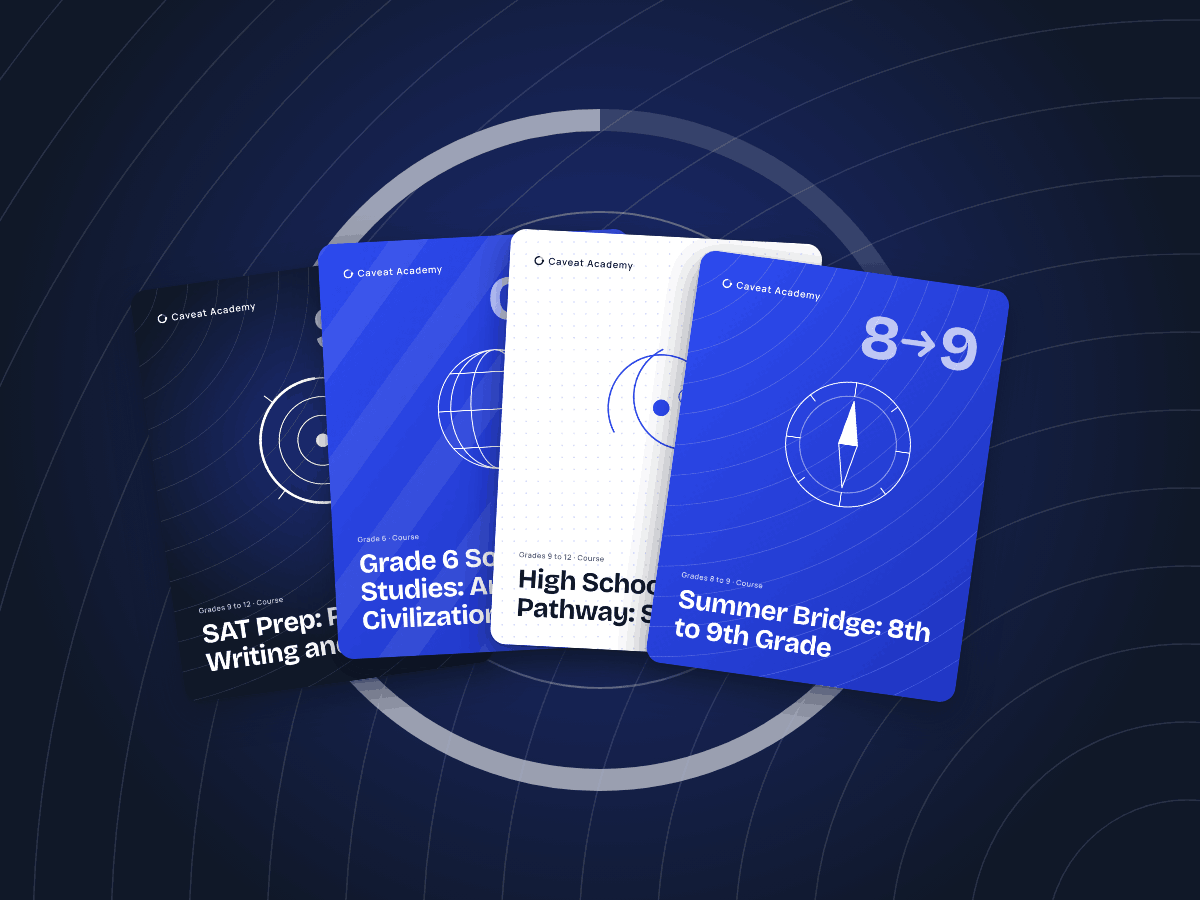
Self-paced courses for grades 6 to 12, from full-year classes to AP and SAT prep.
 For parentsCaveat Co-Op
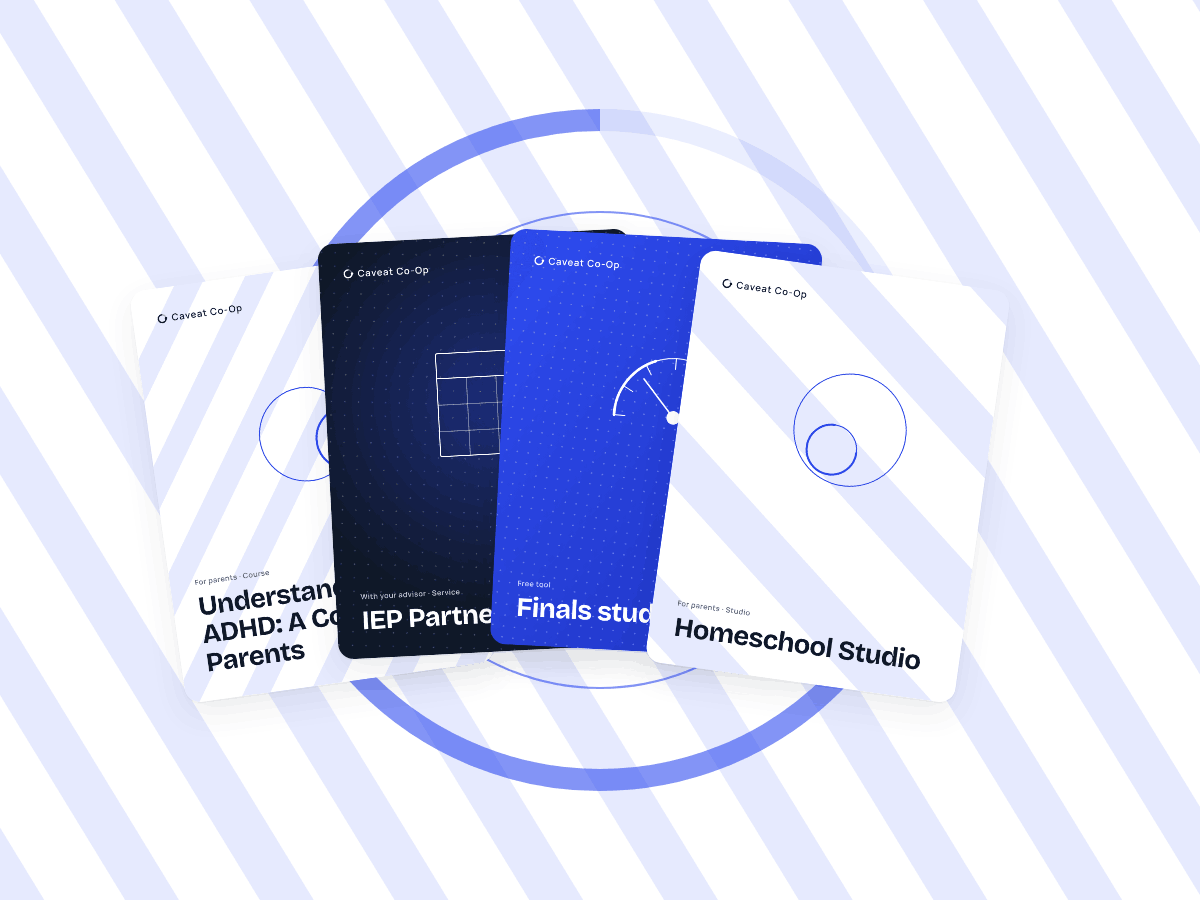
Homeschool from kindergarten to grade 12, courses for parents, and plans with your Caveat advisor.
 For college-bound students and familiesCaveat College
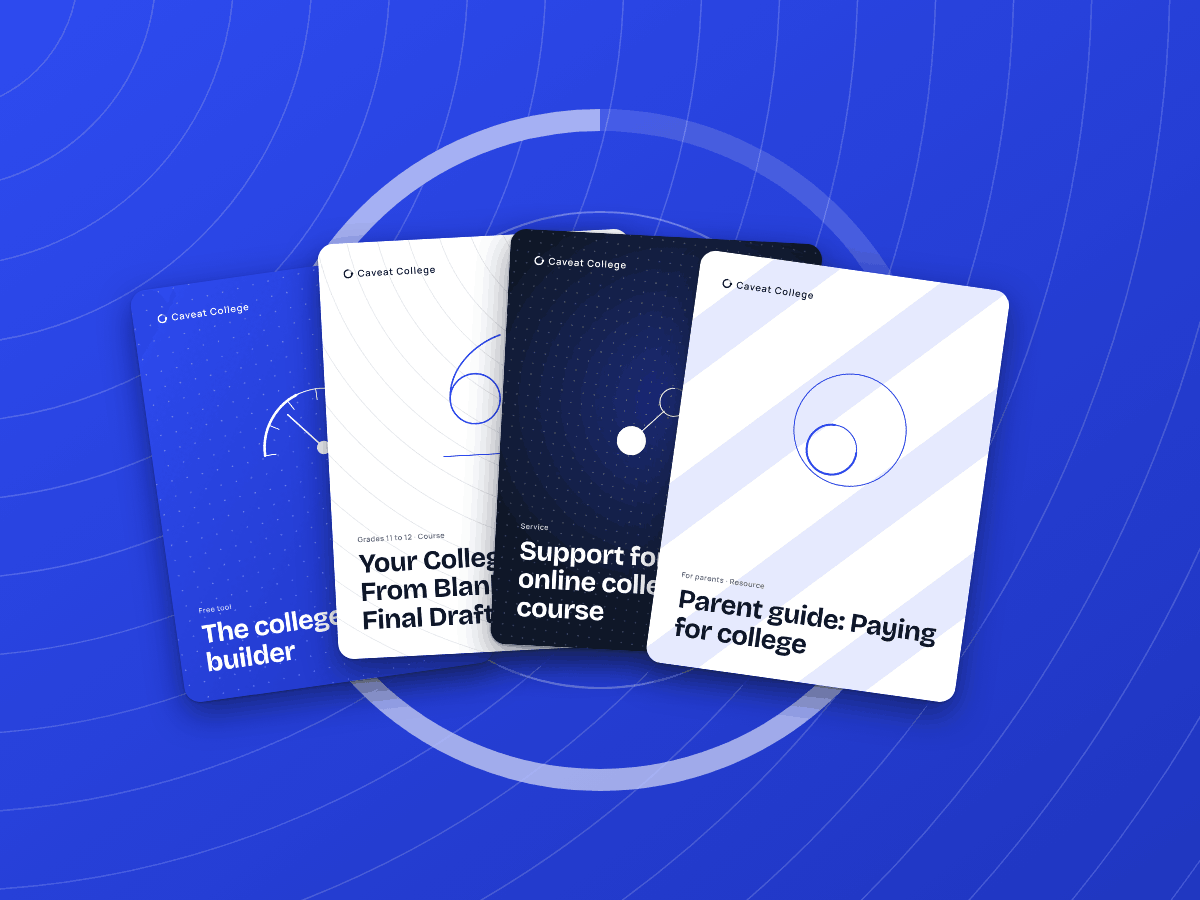
College credit in high school, the college list, applications, paying for college and the move to college.
 For social-emotional learningCaveat Cares
Feelings, friendships and self-regulation, for students, families and teachers.
 For career exploration and readinessCaveat Careers
A free Career Explorer, career pathways and electives, and getting ready for a first job.
Lens for Schools is screening support, not diagnosis. Its bands are Caveat's own screening thresholds, with no norms behind them, and its tier suggestions are Caveat's own rule on those bands. They support your school's MTSS process; they do not replace your approved universal screener, your school's decision rules or any state requirement, and the team decides. A screen never limits a school's Child Find duty under IDEA, and a parent may ask for an evaluation at any time. Caveat Academic Services is independent and not affiliated with any school district or test publisher.